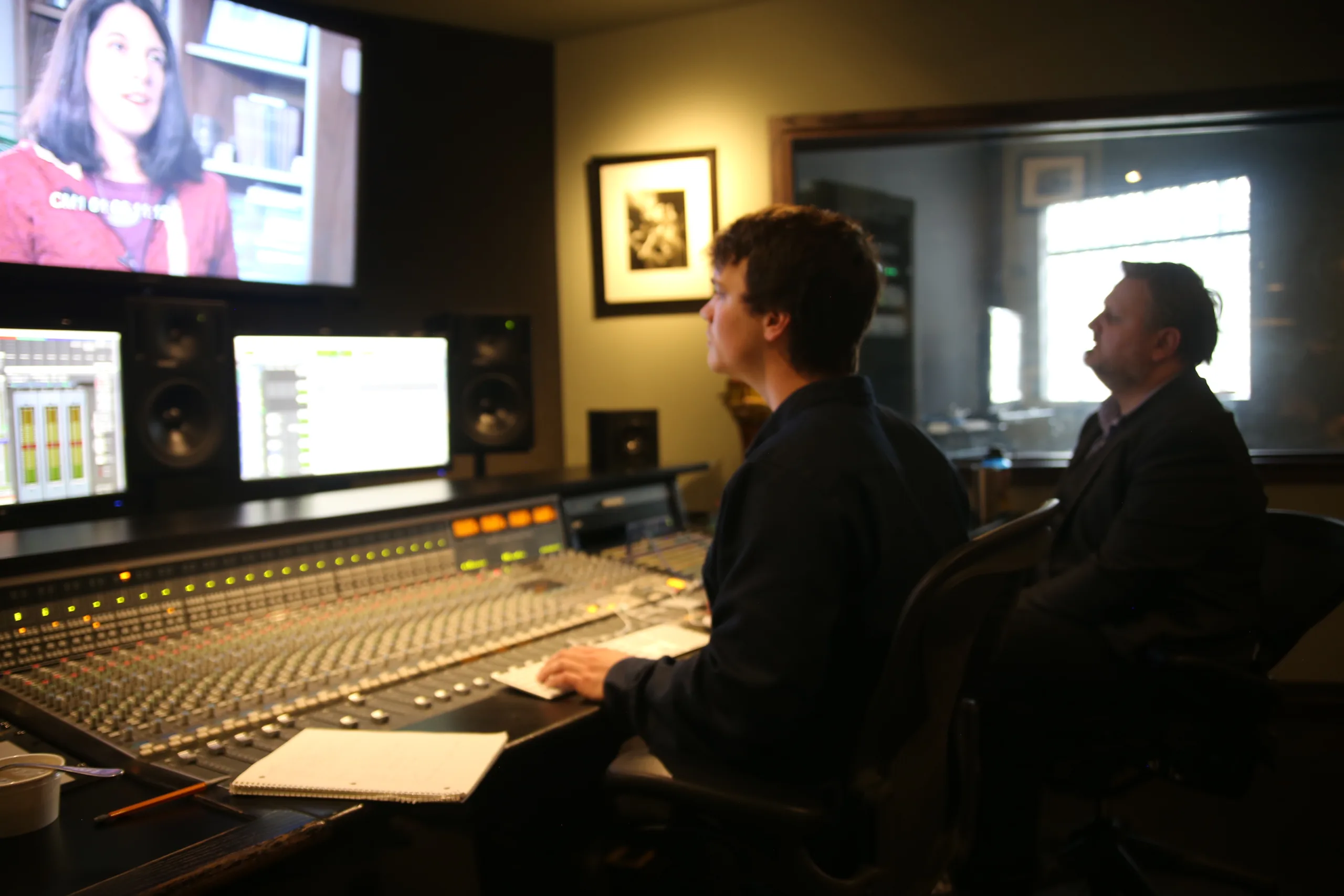
Today, I can see the summit. I envisioned the final result of “The Unruly Mystic: John Muir” on the first day of principal photography in May 2015. I would spend 18-months interviewing people and traveling throughout the US and Canada. After three months of editing, I could see the film’s outline above the trees.
Organization is not the opposite of creativity — it is what makes creativity possible under pressure. The system described here began with a color on a piece of paper and ended with a finished documentary. The tools Adobe Premiere Pro provides are exactly that: tools. What gives them meaning is the organizational thinking you bring to them before you open the software.
There were multiple steps taken to achieve this editing milestone. I will explain my process and approach to encourage others with their filmmaking projects by providing specific details. There are many articles and books available on the editing process, but I want to share what worked for me.
I will focus on what happens after filming has been completed. This post primarily addresses the editing process rather than production. It also requires a working understanding of Adobe Premiere and will help you understand it as a database tool rather than a visual means to edit video.

Information is readily available on how to capture great shots and sound using a two-camera setup. To assist with the editing process, it is essential to ask your interview subjects the same questions so you’ll have a variety of responses on one topic.
Defining Your Topic of Interest

First I asked each subject to share their favorite John Muir story and suggested one when Muir climbed a tree during a thunderstorm. In doing so, I could retell the story using multiple narrators. This approach was also useful with other questions, which is why you should establish the focus of your film before production begins. I wrote an outline on the topics I thought would be relevant and kept it with me throughout filming and editing.
Since I work with Adobe Premiere Pro (PrPro), I know from previous documentary productions that I don’t want to edit interview sequences in their original MXF* files. I have experienced instances where an original file was corrupted or “lost” that ruined an entire sequence when I was ready to export it. This step allows me to keep the “original” files off-site while working with a facsimile of the original footage. Each file became a new MXF by exporting a sequence after importing the original files. *MXF is the output for a 1.9 GB video file when shooting with a Canon XF 100.
Footage preparation
I re-import the facsimile MXF files, create a multi-camera edit, and then add a timecode to the sequence. It isn’t necessary to edit back and forth between the cameras during this step of the editing process. You need one camera angle (preferably front) and the best audio file to begin exporting but in a lower resolution to upload the file online with an embedded timecode for an H.264 file.
Transcription
The H.264 file is the resource for the next step. I didn’t have the luxury of using this when making my previous documentary. This involves creating a transcription of the interviews in a Word file based on the timecodes. There are multiple businesses that provide this service and I was happy with the one I chose. On average, prices are roughly $100 for an hour of footage and billed by the minute. The benefits are worth the expense based on the variety of ways you can use the transcriptions.
Colored Topics
The following process is one that I created and worked best for me. Once I had the transcriptions, I reviewed each document with different color markers. I had previously outlined the topics, assigning them different colors.

By implementing the idea of hearing the John Muir tree story retold multiple times, I would highlight that section. There could be multiple themes I was following and I would do the same for those.
Interview Sequence Marking
After I went through the 15-page document, I would open the multi-cam sequence in PrPro and mark each beginning point for the timeline topic.
I would also copy and paste from the Word file the specific transcription sentence or paragraph into the marker’s description. I would also color code the marker to match the highlighter for future reference in the sequence. Next, I would place a cut at the marker in-point and another at the end of the edit. The clip would be nested with the same description from the transcription.
The Matt Fox timeline looked like the following:

Descriptive nested sequence and themed topic bin
After creating a descriptive nested sequence, I could drop the file into a bin for similar topics. Ideally, you want a manageable number of bins for the nested sequences. Once in their bin, I made sure the nested sequences had a uniform color (i.e. green for forest) so I would know if I had used the clip after creating a new sequence for a rough cut. Once I used the clip in the new sequence, I would return it to the project folder from the edited sequence with a smartkey I made (Alt+D). I would change the color to red (rose). While PrPro can reveal clips that are being reused in a sequence, it won’t do the same for nested sequences.

While I didn’t create descriptive nested sequences into specific bins until I completed my interviews, you can do this after each interview but it’s important to be open to the entire spectrum of the interview footage. This helps you refresh your memory by reading the transcriptions and highlighting the essential dialogue related to your chosen topics. This is important when interviewing several people overover a long period. If the interviews are short and few, you can start earlier. I had one hour of footage for each of the 15 interviews.
Now that I have my nested descriptive sequences into their bins, I can select those sequences and make a new sequence for editing. I like to know who is speaking (thumbnails are not available with nested sequences), so I would go through the clips and assign a color to each speaker. I could also randomly place the clips so that no two clips followed in the same color.
Because the topic was similar, there was no harm in doing this as I could move the clips when I started editing. This process would lead to new discoveries while editing.

I noticed each bin consisted of 10 minutes of material from 20 clips. I treated each sequence as a separate film — I could watch the sequence, move the clips to improve the flow, and clean up the dialogue at the in and out points at the original nested sequence. Ideally, you should do this in the edited sequence, but I didn’t always have access to the visual cue of the waveform on a particular sequence without rendering it again.
Conclusion
With a new sequence created with this process, I could start editing on the themed topic bin. I knew I had the relevant descriptive nested clips in one bin, so I could find where I took that clip in the original interview by reviewing the descriptive markers on the sequence. I designed a method that noted which clip was used and could double click any nested clip to open the descriptive nested sequence to access each individual multi-cam edit. This was helpful in cutting back and forth between two cameras to improve dialogue edits after I decided on my final edit.
Now the magic of editing was underway.
Adventures in a Tree, The Unruly Mystic: John Muir Movie Trailer (Published April 19, 2018)
Final clip from the mixed and cinema ready film.
A Student Guide to the Documentary Workflow
The following section reframes the process described above as a step-by-step instructional guide for students learning Adobe Premiere Pro. It is drawn directly from the production of The Unruly Mystic: John Muir and the classroom presentation that followed.
Everything described on this page started with a color on a piece of paper. That color became a label in Premiere Pro, which became a bin, which became a story. The system you build before you edit is what lets you tell the story while you edit.
Why This Matters Before You Start Editing
When you’re editing a short project — a class assignment, a music video, a week of footage you still remember clearly — you can hold most of it in your head. That stops working entirely once you’re dealing with 16 hours of interview footage spread across 8 subjects, each answering the same questions in slightly different ways. Without a system, you spend more time searching than editing. The six steps below are the system that solved that problem on a real feature-length documentary — and they scale down to any project with multiple subjects or extended footage.
Step 1: Build Your Framework Before You Shoot
The workflow starts before the camera rolls. Asking every interview subject the same core questions isn’t just good interviewing — it is an organizational decision. When every subject answers the same questions, you can later collect all their responses to the same question and cut them together, building a narrative thread from multiple voices without hunting through hours of footage to find it.
For The Unruly Mystic: John Muir, every subject was asked about their personal connection to nature, how they experienced the outdoors, and their relationship to John Muir’s writing. Eight people answering the same questions, often using the same words, became the structural backbone of the entire film.
Before any interview project: decide your questions and assign a color to each one before you shoot. Consistent questions create consistent structure. Consistent structure makes your edit faster and your story clearer.
Step 2: Assign a Color to Each Topic — On Paper First
Each interview question or topic was assigned a specific color in a physical notebook before anything touched Premiere Pro. Green for Who is John Muir, purple for connection to nature, orange for personal experience in the wild. Every response to every question, across every subject, would eventually carry that color — in the transcript, in the clip labels, and in the bins inside Premiere.
Deciding the color system on paper first means your organizational decisions are creative and intentional, not reactive. When you are deep in an edit and tired, you do not want to be inventing a system. You want to be using one you already built.
Note on Premiere Pro label colors: In current versions of Premiere Pro, you can customize label color names under Preferences > Labels. Rename each color to match your project’s topic system — so instead of “Mango” or “Iris” you see “Connection to Nature” or “Personal Story.” The color system becomes self-documenting inside the software itself.
Step 3: Transcribe Your Footage — Then Color-Code the Transcript
Every interview was transcribed with timecode included. Having a written transcript with timecode serves two purposes: you can read the content without watching the video, which is significantly faster, and you can highlight the transcript with your color system — marking each answer with the color assigned to that question — before you open Premiere. The result is a color-coded paper edit of the entire project sitting in a binder.
When the transcription was first produced on John Muir, it cost approximately $100 per hour of footage. AI transcription tools have since changed this significantly — current tools can transcribe an hour of footage in minutes at little or no cost. The tradeoff is accuracy: AI makes mistakes, especially with proper nouns, overlapping speech, and technical terms. You still need to review the transcript by listening. Use AI as a starting point, not a finished product.
The timecode advantage: when your transcript includes timecode, reading a sentence tells you exactly where that moment lives in the footage. You can read the transcript, highlight what matters, note the timecode, and go directly to that moment in Premiere — without scrubbing through hours of raw footage to find it.
Step 4: Import the Color System into Premiere Pro
Once the transcripts are color-coded, bring that system into Premiere. Cut each interview clip at the In and Out points identified from the transcript timecodes, and apply the matching label color to each segment. Then drop a marker at the start of each segment, open the marker dialog by double-clicking, and paste the transcribed dialog directly into the marker’s notes field.
The result: hovering your mouse over any marker in the timeline shows you exactly what the person is saying at that moment, without playing the clip. On a 16-hour project with 8 subjects, this single technique saves hours of review time over the course of the edit.
- Cut your interview clip at the In and Out points identified from the transcript timecodes.
- Right-click each segment and apply the matching label color from your pre-production color system.
- Drop a marker at the start of each segment using the M key.
- Double-click the marker to open the dialog and paste the transcribed dialog into the notes field.
- Repeat across every subject. Every clip in your project now speaks the same color language.
Step 5: Build Selects Sequences and Themed Bins
Once clips are labeled, two parallel structures in Premiere make it possible to navigate the project at any scale.
Selects Sequences: For each interview subject, build a single sequence containing only the segments worth keeping — your selects. This is a pre-edit of each person’s interview, stripped of everything already decided not to use. When building the actual film, you pull from selects rather than re-reviewing hours of raw footage. On John Muir, each subject’s full hour of footage became a selects sequence of roughly 10 minutes of usable material.
Themed Bins: Create a bin for each topic — one for green clips, one for purple clips, and so on. Copy or move every labeled clip into the bin that matches its color. When you need every person’s answer to the same question, go to that bin and everything is already collected. You are not searching. You are choosing.
Tracking clip usage: once a nested sequence clip has been used in the edit, change its label to red (rose). While Premiere Pro can reveal reused clips in a sequence, it does not do the same for nested sequences automatically. The color change is a manual but reliable way to know at a glance what has been used and what hasn’t.
Step 6: Protect Your Original Footage
Before editing begins, export the raw camera footage to a high-resolution archive format and keep the originals on a dedicated, off-site hard drive. On John Muir, footage was lost early in production due to how files were initially imported and managed. The workaround — exporting working copies and archiving originals separately — became standard practice for the rest of the production.
With 18 months of interview footage across 15 subjects, losing even one session means losing time, money, and a moment that can never be reshot. Treat original files as irreplaceable from day one. Two copies in two locations is the minimum. Three is better.
The Full Pipeline at a Glance
| Step | What You’re Doing | Why It Matters |
|---|---|---|
| 1. Question Framework | Ask every subject the same core questions before shooting | Creates a structural backbone you can cut across multiple voices |
| 2. Color System | Assign a color to each topic on paper before opening Premiere | Ensures organizational decisions are intentional, not reactive |
| 3. Transcription | Transcribe footage with timecode, then color-highlight the transcript | Read your footage instead of watching it — dramatically faster |
| 4. Labels + Marker Notes | Apply color labels to clips and paste dialog into marker notes | Hover any marker to see what’s being said — no playback needed |
| 5. Selects + Bins | Build selects sequences per subject, themed bins per topic | All footage for one topic is always in one place — no searching |
| 6. Archive Originals | Export working copies, keep originals off-site before editing | Footage that cannot be reshot must be treated as irreplaceable from day one |
Organization is not the opposite of creativity — it is what makes creativity possible under pressure. The system described here began with a color on a piece of paper and ended with a finished documentary. The tools Adobe Premiere Pro provides are exactly that: tools. What gives them meaning is the organizational thinking you bring to them before you open the software.